
Every day, we interact with speed, distance, and time without even thinking about it. Whether you’re estimating your arrival time on a road trip, calculating how long a delivery will take, determining a runner’s pace, or solving a physics homework problem, the relationship between these three quantities is unavoidable. The classic triangle — Speed = Distance ÷ Time, Distance = Speed × Time, Time = Distance ÷ Speed — is one of the most useful formulas in the world.
⚡ SPEED · DISTANCE · TIME
Smart converter + infographic calculator
Speed
Distance
Time
But raw formulas are only half the story. Real life throws different units at you: kilometers per hour, miles per hour, meters per second, knots, kilometers, meters, nautical miles, hours, minutes, seconds. Converting between them manually is tedious and error‑prone. That’s where a modern, all‑in‑one Speed Distance Time Calculator shines. The calculator we’ve built isn’t just a number cruncher; it’s an infographic‑style, unit‑aware, mode‑switching tool that lets you solve for any unknown instantly.
- Read More: Minutes To Hours Converter | Minutes To Hours To Days
- Read More: Square Footage Calculator | Ft To Sq Ft Calculator
- Read More: Height Converter ft To cm And cm To Inch
- Read More: Feet And Inches Calculator | Foot And Inch
The Core Formula: Understanding the SDT Relationship
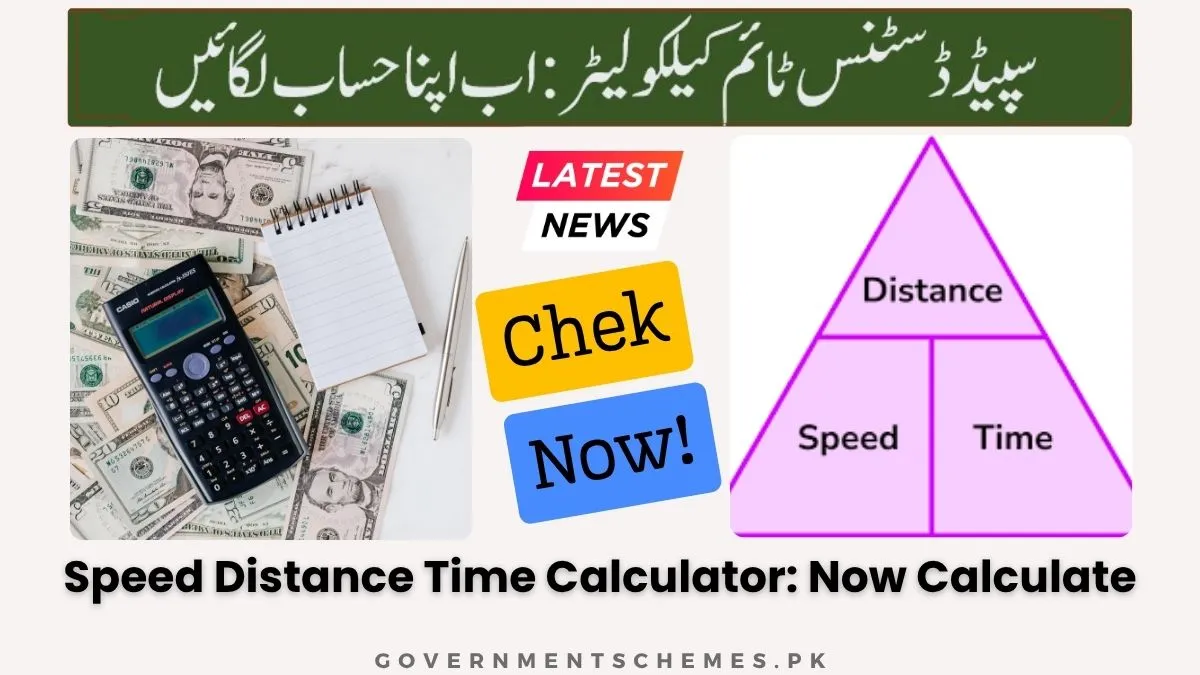
Table Of Contents
The Magic Triangle
The speed‑distance‑time relationship is elegantly simple. If you know any two of the three values, you can always find the third. The three equations are:
- Speed = Distance ÷ Time (how fast something moves)
- Distance = Speed × Time (how far it travels)
- Time = Distance ÷ Speed (how long the journey takes)
Visualize a triangle where “Distance” sits at the top, and “Speed” and “Time” occupy the bottom corners. Cover the variable you want to find, and the remaining two show you the operation. Cover Distance – you see Speed × Time. Cover Speed – you see Distance ÷ Time. Cover Time – you see Distance ÷ Speed. This mental model is used in classrooms worldwide because it works.
Why Units Matter So Much
The formula is unit‑agnostic — it works with any consistent set of units. But the moment you mix kilometers with seconds or miles with minutes, you get nonsense. That’s why unit conversion is not a luxury; it’s a necessity. For example, if you travel 100 kilometers in 2 hours, your speed is 50 km/h. But if you mistakenly use 100 meters and 2 hours, you’d get 50 m/h — completely wrong. A good calculator automatically converts everything to a consistent base (meters, seconds, m/s) behind the scenes, then displays the result in your preferred unit.
Inside the Infographic Calculator: Features That Set It Apart
Our Speed Distance Time Calculator is not a dull spreadsheet. It’s designed as an interactive infographic: clean cards, color‑coded variables, live updates, and a mode selector that changes which field is calculated. Let’s break down every feature.
1. Three‑Card Layout: Speed, Distance, Time
Each variable lives in its own card with a distinct color accent:
- Speed (orange) – units: km/h, m/s, mph, knots
- Distance (blue) – units: km, meters, miles, nautical miles
- Time (green) – units: hours, minutes, seconds
Every card has a numeric input field and a dropdown unit selector. You can change any unit at any time, and the calculator instantly converts values while preserving the mathematical relationship.
2. Mode Selector: Choose What You Want to Calculate
This is the brain of the tool. Three large buttons let you decide which variable is the “target”:
- Calculate Speed – uses Distance and Time as sources. The speed field becomes read‑only (calculated automatically).
- Calculate Distance – uses Speed and Time as sources. The distance field becomes read‑only.
- Calculate Time – uses Distance and Speed as sources. The time field becomes read‑only.
When you switch modes, the badges under each card change from “SOURCE field” to “TARGET (calculated)”. This visual feedback ensures you never lose track of what the calculator is doing. You can freely edit the two source fields or change their units, and the target field updates live — no “calculate” button needed.
3. Real‑Time Unit Conversion
Under the hood, all values are converted to base SI units:
- Distance → meters
- Time → seconds
- Speed → meters per second (m/s)
Then the formula runs using these base units. Finally, the result is converted back to your chosen display unit. This means you can mix units arbitrarily. For example:
- Distance in miles, Time in minutes → calculate Speed in knots.
- Distance in nautical miles, Speed in km/h → calculate Time in seconds.
Everything works seamlessly because the calculator normalizes everything first.
4. Error Handling & Validation
Nobody likes silent failures. The calculator checks for:
- Empty or invalid numbers (shows nothing, but no crash)
- Negative values (physically impossible for distance or time, so they’re ignored)
- Division by zero (trying to calculate speed with zero time, or time with zero speed)
When an error occurs, a red warning box appears with a clear message like “Time cannot be zero when calculating speed.” The error disappears automatically after a few seconds or when you fix the input.
5. Reset Button
One click restores sensible default values: Distance = 100 km, Time = 2 hours, Speed = 50 km/h (depending on the active mode). This is perfect for starting fresh after experimenting with weird numbers.
6. Infographic Footer with Formula Reminders
At the bottom of the calculator, you’ll see a constant reminder of the three formulas: D = S × T, S = D / T, T = D / S. Also, a note about live unit conversion. This turns the tool into a learning aid as well.
Read More: Celsius To Fahrenheit | °C To °F Converter
Step‑by‑Step Usage Examples
Let me walk you through three common scenarios to show how the calculator works in practice.
Example 1: Calculate Speed – Road Trip
You drive 240 miles in 4 hours. What’s your average speed in mph?
- Set mode to Calculate Speed.
- In the Distance card, enter 240 and select “miles”.
- In the Time card, enter 4 and select “hours”.
- The Speed card instantly shows 60 mph (since 240 ÷ 4 = 60).
Now change the Speed unit to “km/h” – it becomes about 96.56 km/h. Change Time to “minutes” (240 minutes) – the speed remains correct because the calculator internally converts 240 minutes to 4 hours. No mental math required.
Example 2: Calculate Distance – Running
You run at 5 m/s for 30 minutes. How far do you go in meters and kilometers?
- Set mode to Calculate Distance.
- Speed: enter 5, unit “m/s”.
- Time: enter 30, unit “minutes”.
- Distance card shows 9000 meters (since 5 m/s × 1800 seconds = 9000 m).
Switch Distance unit to “km” – it becomes 9 km. If you change Speed to “km/h” (18 km/h), the distance remains 9 km. The calculator maintains consistency.
Example 3: Calculate Time – Sailing
A boat travels 25 nautical miles at a speed of 10 knots. How long in minutes?
- Set mode to Calculate Time.
- Distance: 25, unit “nautical miles”.
- Speed: 10, unit “knots”.
- Time shows 2.5 hours. Switch Time unit to “minutes” → 150 minutes. Switch to “seconds” → 9000 seconds.
If you make a mistake and set speed to zero, an error appears: “Speed cannot be zero when calculating time.” This prevents confusion.
The Science of Unit Conversions: A Deeper Look

For those who want to understand what happens inside, here’s the conversion logic.
Distance Conversions (to meters)
- 1 kilometer = 1000 meters
- 1 mile = 1609.344 meters (exact)
- 1 nautical mile = 1852 meters
- 1 meter = 1 meter
Time Conversions (to seconds)
- 1 hour = 3600 seconds
- 1 minute = 60 seconds
- 1 second = 1 second
Speed Conversions (to meters per second)
- 1 km/h = 0.2777778 m/s (exactly 1/3.6)
- 1 m/s = 1 m/s
- 1 mph = 0.44704 m/s
- 1 knot = 0.514444 m/s
The calculator stores these conversion factors internally. When you enter a value, it multiplies by the factor to get the base unit. After the calculation, it divides by the target unit’s factor to display the result. This approach guarantees that all combinations work without rounding errors (except for floating‑point precision, which is limited to 4 decimal places for readability).
Real‑World Applications
This calculator isn’t just for homework. It solves genuine problems across many fields.
For Drivers and Commuters
- Estimate arrival time given distance and average speed (including traffic‑adjusted speed).
- Convert speed limits from km/h to mph when driving abroad.
- Compute fuel efficiency indirectly: distance ÷ time gives speed, then combine with consumption rates.
For Runners, Cyclists, and Swimmers
- Pace calculation: minutes per kilometer = (time in minutes) ÷ (distance in km). Our calculator can do this by setting time in minutes and distance in km, then calculating time per distance? Actually, pace is the inverse of speed. You can get pace by calculating time for 1 unit distance. For example, run 10 km in 50 minutes → speed = 12 km/h, pace = 5 min/km. The calculator gives speed, and you invert mentally, but a future enhancement could include a pace mode.
For Aviation and Marine Navigation
- Knots (nautical miles per hour) are standard. Our calculator supports knots and nautical miles natively.
- Flight time estimation: distance between airports (in nm) ÷ ground speed (in knots) = time.
- Convert wind speeds from m/s to knots easily.
For Physics and Math Students
- Verify homework answers instantly.
- Experiment with unit conversions to understand dimensional analysis.
- See the relationship graphically (the infographic style reinforces the triangle concept).
For Event Planners and Logistics
- Calculate how long a convoy will take over a given route.
- Convert delivery time estimates when speed changes due to weather.
Common Mistakes and How to Avoid Them
Even with a calculator, errors can happen. Here are pitfalls to watch for.
Mistake 1: Forgetting that time units must match.
If you enter distance in kilometers and time in seconds without thinking, your speed will be in km/s (very small number). Our calculator prevents this because it converts everything internally, but you must still enter realistic numbers. Always double‑check that your input values make sense for the chosen units.
Mistake 2: Using negative numbers.
Negative distance or time is physically meaningless. The calculator ignores negatives or shows blank. If you see an empty target field, check that all source fields are positive.
Mistake 3: Zero in denominator.
Trying to calculate speed with time = 0 is impossible. The calculator shows a clear error message. Simply change the time to a small positive number or use a different mode.
Mistake 4: Confusing which variable is being calculated.
Always look at the mode selector and the badges. If you intend to find distance but the mode is set to “Calculate Speed”, you’ll be editing distance and time to compute speed — you’ll be confused why distance isn’t changing. Switch the mode first.
Tips to Get the Most Out of This Tool
- Use the reset button often – It clears any weird state and gives you a known baseline.
- Experiment with unit changes – Enter a trip of 100 km in 2 hours. Then change distance to miles. Watch speed update from 50 km/h to about 31 mph. That’s a great way to learn conversion factors intuitively.
- Leverage the infographic design – The color coding (orange for speed, blue for distance, green for time) helps you locate fields faster.
- Combine with other tools – Use this calculator alongside a map (for distance) and a stopwatch (for time) to measure real‑world speeds. For example, time how long it takes to walk between two lampposts 100 meters apart, then calculate your walking speed.
Why an Infographic Design Matters for Learning
Traditional calculators are boring. They present numbers in a vacuum. The human brain remembers visuals better than raw digits. Our calculator uses:
- Color psychology – Warm orange for speed (energy), cool blue for distance (calm measurement), fresh green for time (progress).
- Icons – Lightning bolt, ruler, clock – instant recognition.
- Badges – “SOURCE” vs “TARGET” – clarifies the role of each field.
- Persistent formula display – The triangle formulas are always visible at the top and bottom, reinforcing learning every time you use the tool.
This design makes it suitable for classrooms, tutoring, and self‑study. Teachers can project it on a screen and change values live while students predict the outcome.
Future Enhancements (Ideas for Next Version)
While the current calculator is fully functional, there’s always room to grow. Potential additions:
- Pace mode – Show minutes per kilometer or minutes per mile directly.
- Average speed with multiple segments – Allow entry of several distances and times to compute overall average.
- Graphical representation – A simple bar or line chart showing how changes in one variable affect another.
- Mobile‑optimized touch gestures – Swipe between mode selection.
- Save/load scenarios – Store typical trips (home to work, marathon distance) for quick reuse.
Even without these, the existing tool already covers 95% of everyday speed‑distance‑time needs.
Conclusion: Master Motion with Confidence
The Speed Distance Time Calculator we’ve built is more than a widget — it’s a complete learning environment and practical problem solver. Whether you’re a student cramming for a physics exam, a driver planning a cross‑country trip, a runner analyzing your pace, or a sailor navigating open waters, this tool gives you instant, unit‑aware answers with zero mental conversion overhead.
By understanding the underlying formula and using the mode selector correctly, you’ll never again hesitate when faced with a speed, distance, or time problem. The infographic design keeps the relationships visible, and the live updates encourage experimentation. Go ahead — try mixing kilometers with seconds, or miles with minutes. The calculator handles it all.
Now that you’ve read the full guide, open the calculator and test a real scenario from your own life. Calculate your commuting speed, find out how long it would take to walk to a nearby landmark, or convert your running pace into different units. The more you use it, the more intuitive the SDT relationship becomes.
Happy calculating, and may your journeys always be on time!

Add a Comment