
Pakistan’s digital transformation reaches a critical milestone with the introduction of the Digital ID card, a legally recognized electronic version of the Computerized National Identity Card (CNIC) accessible through the Pak Identity mobile application. This guide delivers a complete walkthrough of the Digital ID card Pakistan process—from downloading the Pak Identity App to using your digital credential for banking, travel, and government services.
What you will learn from this guide:
- Exact steps to download, install, and register on the Pak Identity App
- How to complete biometric fingerprint and face verification on a smartphone
- Where to find and securely store your Digital ID in the PakID Vault
- Legal validity of Digital ID for bank account opening, airport security, and public services
- Troubleshooting solutions for failed OTPs, app crashes, and biometric errors
- Special instructions for Overseas Pakistanis and NICOP holders
Key Takeaways
- Full Legal Standing: NADRA has mandated that the Digital ID card is equivalent to the physical CNIC/NICOP for all public and private sector transactions.
- Biometrics Are Non‑Negotiable: The app uses live fingerprint capture and facial liveness detection to prevent fraud—ensure your device supports both.
- PakID Vault Adds Value: Beyond the Digital ID, you can securely store driver’s licenses, vehicle registration books, educational degrees, and more.
- Offline Access Available: Once downloaded, your Digital ID is viewable without an internet connection; verification of the QR code, however, requires connectivity.
- Read More: NADRA e-Sahulat Biometric Verification (Apply CNIC, FRC, B-Form)
- Read More: NICOP Pakistan: How to Apply Online | Track NICOP
- Read More: Pakistan Origin Card (POC): How To Apply, Fee, & Tracking
- Read More: Family Registration Certificate (FRC): How to Apply Online
Digital ID card Pakistan: How to Apply Online (Pak Identity App)
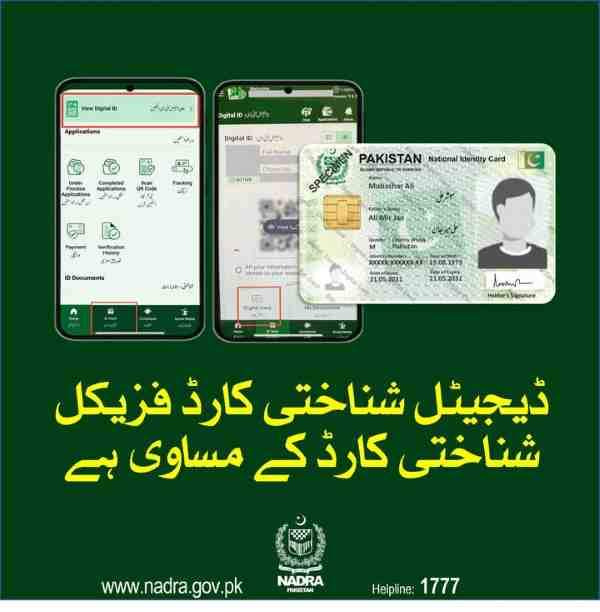
Table Of Contents
What is the Digital ID Card Pakistan and Why Do You Need It?
The Digital ID card Pakistan is the official digital twin of your CNIC or NICOP, generated by NADRA and stored inside the Pak Identity mobile application. It is not a simple screenshot but a cryptographically verifiable credential that carries the same legal weight as the physical card.
Core elements that define the Digital ID:
- Issued exclusively through the Pak Identity App
- Contains a dynamic QR code that can be scanned for instant verification
- Protected by biometric authentication (fingerprint or face) before access
- Legally accepted by banks, telecom companies, airports, and government departments
Why every Pakistani citizen and NICOP holder needs it:
- Eliminates the risk of losing or damaging a physical card
- Enables instant identity verification without carrying a wallet
- Provides a foundation for accessing other digital government services (Single Sign‑On)
- Simplifies Know Your Customer (KYC) processes for financial and business transactions
The broader ecosystem: NDEL and the Digital Identity Vision
NADRA is building the National Data Exchange Layer (NDEL) to enable secure, consent‑based data sharing across public and private organizations. The Digital ID acts as the primary key to unlock these services, ensuring privacy and data protection while streamlining access.
Prerequisites and Requirements for Digital ID Card Pakistan Application
Before you begin the application process, confirm that you meet all technical and documentation requirements. Missing any prerequisite will cause the registration to fail.
What are the requirements to apply for a Digital ID in Pakistan?
- A valid CNIC (for residents) or NICOP (for Overseas Pakistanis)
- A smartphone running Android 8.0 or higher / iOS 13 or higher
- A stable internet connection (Wi‑Fi or 4G/5G)
- Your mobile SIM must be registered in your own name (for OTP verification)
- An active email address for account recovery
What mobile devices are compatible with the Pak Identity biometric scan?
Compatibility depends on the phone’s fingerprint sensor and camera capabilities.
| Device Type | Minimum Requirements |
|---|---|
| Android | OS 8.0+, rear/front camera ≥ 8 MP, dedicated fingerprint sensor or on‑screen scanner |
| iOS | iPhone 6s or newer, iOS 13+, Touch ID or Face ID |
- Phones with outdated sensors may fail fingerprint capture
- Some budget devices may not support the liveness detection feature
What documents are needed to apply for a Digital ID online?
- Physical CNIC/NICOP (you will need to scan the QR code on the back)
- Mobile number registered with NADRA against your CNIC
- Valid email address
Important note: If your SIM card is not registered in your name, OTP messages will not reach you. Update your SIM ownership with your mobile operator before starting the application.
Step-by-Step Guide: How to Apply for Digital ID Card Pakistan Using the Pak Identity App

This section breaks down every step of the process, from downloading the app to securely storing your Digital ID in the vault.
How do I download the Pak Identity app for Digital ID?
Downloading the app is the first and simplest step.
For Android users:
- Open the Google Play Store
- Search for “Pak Identity” or “NADRA Pak Identity”
- Look for the app with the official NADRA logo
- Tap “Install” and wait for the download to complete
For iOS users:
- Open the Apple App Store
- Search “Pak Identity”
- Verify the developer is “National Database and Registration Authority”
- Tap “Get” and authenticate with Face ID or Apple password
Is the Pak Identity app available for both Android and iOS?
Yes, NADRA maintains official versions for both platforms, updated regularly to include security patches and new features.
How do I create a new account on the Pak Identity mobile app?
After installation, account creation requires accurate input of your personal details.
Step‑by‑step account registration:
- Launch the Pak Identity App
- Tap “Register” or “Create New Account”
- Enter your CNIC/NICOP number without dashes (e.g., 1234567890123)
- Input your mobile number as registered with NADRA
- Provide a valid email address
- Create a strong password (combination of uppercase, lowercase, numbers, symbols)
- Tap “Next” to receive an OTP
Verification via OTP:
- An SMS containing a 6‑digit OTP will be sent to your mobile
- Enter the OTP within 60 seconds
- If OTP does not arrive, use the “Resend Code” option after 30 seconds
How do I verify my biometric fingerprints using a smartphone?
Biometric verification links your physical identity to the digital record.
Step 1: Fingerprint capture
- The app will prompt you to place your finger on the sensor
- Use the finger that has the clearest print (usually thumb or index finger)
- Press firmly but briefly; do not slide or move during capture
- Repeat for up to four fingers as requested
Step 2: Facial liveness detection
- Position your face within the on‑screen oval
- Ensure adequate lighting (avoid backlight or shadows)
- Follow on‑screen instructions (blink, turn head slightly)
- The app records a short video to confirm liveness
What to do if capture fails?
- Clean the fingerprint sensor and your fingers
- Try a different finger with a clearer print
- Ensure the phone is steady during face capture
- You get up to 10 attempts; after that, the app may lock for a period
How do I upload my photograph for the Digital ID application?
Your photograph is taken from the NADRA database, but the app may ask for a fresh capture to ensure recency.
- If prompted, take a selfie following the guidelines:
- Plain white or light‑colored background
- Neutral expression, mouth closed
- Eyes open and looking directly at the camera
- No glasses, headgear, or accessories that obscure the face
How do I scan the QR code to digitize my physical CNIC?
The QR code on the back of your physical CNIC automates data entry and confirms authenticity.
Locating the QR code:
- On newer CNICs, the QR code is printed on the reverse side
- If your card is older and lacks a QR code, you will be prompted to enter data manually
Scanning process:
- Tap “Scan QR Code” inside the app
- Hold your phone camera over the QR code
- Keep the card flat and well‑lit
- Wait for the app to auto‑fill your name, father’s name, and date of birth
What is the “PakID Vault” and how do I use it?
The PakID Vault is a secure, encrypted storage area within the app where you can store multiple verified documents.
Documents you can add to the vault:
- Digital ID card (automatically stored after successful registration)
- Driver’s license
- Vehicle registration book
- Arms license
- Educational degrees and certificates
- Professional licenses
How to add a document:
- Open the Pak Identity App and navigate to “Vault”
- Tap “Add Document”
- Select the document type from the list
- Capture a photo of the document or upload from gallery
- The app may request additional verification if the document is official
Vault security features:
- Accessed only after biometric authentication
- Data encrypted both at rest and in transit
- No external sharing of stored documents without your explicit consent
How do I pay the processing fees within the app?
Is there a fee for activating the Digital ID on the app?
- Initial download of Digital ID is free of charge
- Fees apply only for specific services such as:
- Family Registration Certificate (FRC)
- Modification of personal details (name, address, etc.)
- Issuance of duplicate or renewed CNIC
Payment options integrated in the app:
- JazzCash
- EasyPaisa
- Debit/credit cards (Visa, Mastercard)
- Bank transfers through 1Link
How to Download Your Digital ID Card
After successful verification, the Digital ID is ready for download.
Final steps to obtain your Digital ID:
- Log in to the Pak Identity App
- Tap “Digital ID” on the home screen
- Review the information displayed
- Tap “Download to Vault”
- The Digital ID card appears in your vault, accessible offline
Managing Your Digital Identity: Using the App for Key Services
Beyond the Digital ID, the Pak Identity App serves as a gateway to multiple NADRA services.
Can I apply for a fresh CNIC through the Pak Identity app?
The app does not yet support first‑time CNIC applications for adults, but it handles modifications and renewals.
- For newborn registration, parents can apply through the app by linking the child’s birth certificate to their own record
- For lost or stolen CNICs, the app allows you to apply for a duplicate
Can I renew my expired CNIC using the Pak Identity app?
Yes, if your CNIC has expired or is nearing expiry, you can initiate renewal directly from the app.
Renewal process:
- Go to “Services” → “CNIC Renewal”
- Verify your biometrics
- Select delivery address (home or nearest NADRA center)
- Pay the renewal fee through the integrated payment gateway
- Track the application status under “My Requests”
Can I update my home address through the Pak Identity app?
Address updates are supported, but require proof of residence.
Required documents for address change:
- Utility bill (electricity, gas, water) in your name or with a supporting affidavit
- Property tax receipt
- Rent agreement with attested copy
Steps to update address:
- Navigate to “Modify CNIC Information”
- Select “Address”
- Enter the new address exactly as it should appear on the card
- Upload scanned copies of proof documents
- Pay applicable fee and submit
Can I apply for a FRC (Family Registration Certificate) via the app?
FRC applications are fully supported and are one of the most requested services.
How to apply for FRC:
- Tap “Services” → “Family Registration Certificate”
- Select family members to include (spouse, children)
- Verify each member’s CNIC number
- Choose certificate type (basic, comprehensive)
- Pay the fee and download the FRC in PDF format
How do I modify my mobile number on the Pak Identity portal?
Changing your registered mobile number requires biometric verification and a new OTP.
Process:
- Go to “Profile” → “Mobile Number”
- Enter the new mobile number
- Confirm that the new number is registered in your name with the telecom operator
- Complete a fresh biometric fingerprint scan
- An OTP will be sent to the new number for final confirmation
Troubleshooting Common Issues with the Pak Identity App
Even with a smooth process, users may encounter technical hurdles. Below are solutions to the most common problems.
What should I do if the Pak Identity app fails to capture my fingerprints?
Fingerprint failure is often due to hardware or skin condition issues.
Immediate fixes to try:
- Wipe the fingerprint sensor and your fingers with a clean cloth
- Moisten your fingertips slightly if they are dry or peeling
- Use a different finger (thumb often works best)
- Restart the phone and try again
- Ensure the phone’s screen protector does not cover the sensor
If repeated attempts fail:
- You may need to visit a NADRA registration center for biometric capture
- The center can update your biometric record, after which the app will work
Why am I not receiving the OTP (One-Time Password) during registration?
OTP delivery depends on your SIM being correctly registered and network availability.
Common causes and solutions:
- SIM not registered in your name → visit your mobile operator to transfer ownership
- Network congestion → wait 15 minutes and request a new OTP
- DND (Do Not Disturb) active → disable DND temporarily by sending “STOP” to 8686
- Incorrect number entered → double‑check the number typed during registration
What should I do if my Pak Identity account is blocked?
Account blocking typically occurs after multiple failed login attempts or biometric mismatches.
How to unblock your account:
- Use the “Forgot Password” option to reset credentials
- If the account remains blocked, select “Account Unlock” and answer security questions
- Contact NADRA helpline if automated recovery fails
How do I recover my Pak Identity app password?
Password recovery is self‑service and takes only a few minutes.
Steps to reset password:
- On the login screen, tap “Forgot Password?”
- Enter your CNIC number and registered email
- You will receive a password reset link in your email
- Click the link and set a new password
- Log in with the new credentials
What should I do if the Pak Identity app keeps crashing?
Crashes are often caused by outdated app versions or device memory issues.
Troubleshooting steps:
- Clear app cache (Android: Settings → Apps → Pak Identity → Clear Cache)
- Uninstall and reinstall the app from the official store
- Ensure your phone’s OS is updated to the latest version
- Free up storage space (minimum 500 MB free recommended)
Who should I contact if the Pak Identity app keeps crashing or has other issues?
- NADRA Helpline: Call 051-111-786-100 for technical support
- Email Support: Use the contact form on the NADRA official website
- Regional NADRA Offices: For complex issues, visit the nearest center with your CNIC
Security, Privacy, and Legal Validity of Your Digital ID
Understanding the legal framework and security measures builds trust in the system.
Is the Digital ID on the app legally valid for bank account opening?
Yes, NADRA has issued directives to all banks and financial institutions to accept the Digital ID as a valid identification document.
- Banks use the QR code verification feature to authenticate the document
- The Digital ID satisfies all KYC requirements under State Bank of Pakistan regulations
- Physical CNIC is not required if the Digital ID is presented and verified
Is the Pak Identity app secure for sensitive personal data?
Multiple layers of security protect your data.
Security features implemented:
- End‑to‑end encryption for all data transmitted between the app and NADRA servers
- Biometric authentication required to view or share any stored document
- Data is stored only on your device (vault) and NADRA’s secure servers—no third‑party access
- Consent mechanism: you must explicitly approve any data sharing request
Does the Digital ID work without an internet connection?
- Offline viewing: Once downloaded to the vault, the Digital ID is accessible without internet
- Online verification: When a third party (e.g., a bank) scans the QR code, an internet connection is required to validate authenticity
Is a physical CNIC still required if I have the Digital ID?
- The Digital ID is legally equivalent, but some legacy systems may still request the physical card
- NADRA recommends carrying the physical card only when traveling internationally or for services where digital acceptance is not yet universal
- For most domestic banking, telecom, and government services, the Digital ID suffices
Special Cases: Overseas Pakistanis and Specific Use Cases
The Digital ID system extends to Pakistanis living abroad through the NICOP.
Can Overseas Pakistanis (NICOP holders) use the Pak Identity app?
Yes, NICOP holders are fully eligible and can download the app from anywhere in the world.
Specific considerations for overseas users:
- Ensure your mobile number registered with NADRA can receive international SMS for OTP
- Use a stable Wi‑Fi connection to avoid interruptions during biometric capture
- The app works outside Pakistan without requiring a VPN
Benefits for overseas Pakistanis:
- No need to visit embassies or consulates for identity verification
- Can apply for FRCs, address updates, and other services remotely
- Digital ID can be used to open bank accounts in Pakistan without being physically present
Can I use the Digital ID for domestic travel and airport security?
- Several major airports (Karachi, Lahore, Islamabad) have started accepting the Digital ID as a valid travel document for domestic flights
- Security agencies can verify the QR code through their handheld devices
- It is advisable to also carry a physical CNIC for backup until full digitization is implemented nationwide
What is the ecosystem for digital identity that NADRA is building?
NADRA’s long‑term vision goes beyond a simple digital ID.
Key components:
- Single Sign-On (SSO): One Digital ID login will eventually provide access to all government portals (passport, excise, taxation, education)
- Verifiable Credentials: Users will be able to download cryptographically signed copies of their documents that can be independently verified
- Data Sharing with Consent: Individuals can share specific data elements with businesses without revealing the entire ID card
How to Track Your Digital ID Application and Check CNIC Details Online
Monitoring your application progress and verifying details is straightforward.
How do I track the status of my Digital ID application?
After submitting any request (renewal, FRC, address change), you can track its progress.
Tracking methods:
- In‑app: Go to “My Requests” → select the application to view current status (Submitted, Processing, Completed, Dispatched)
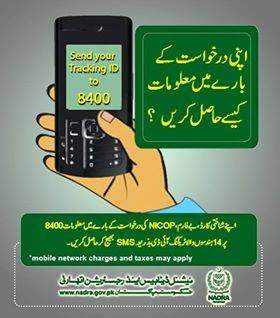
- SMS: Send your CNIC number to 8300 to receive status updates
- Web portal: Use the NADRA ID tracking page on the official website
How to check ID card by CNIC number online?
- The Digital ID itself displays all details when you open it in the app
- For verification by third parties, the QR code scanning tool returns a real‑time validation result, including a photo for visual confirmation
Can I download my NADRA ID card copy as a PDF?
- The Digital ID is stored in a proprietary secure format, not a simple PDF, to prevent tampering
- Printing the Digital ID is not recommended, as printed copies are not legally valid
Conclusion: The Road Ahead for Digital Identity in Pakistan
The Digital ID card Pakistan initiative represents a foundational shift from paper‑based verification to a secure, user‑centric digital identity ecosystem. For citizens, it means carrying less plastic, faster service delivery, and enhanced control over personal data. For businesses, it translates to lower fraud and streamlined KYC. And for the government, it paves the way for truly integrated digital governance.
Final checklist before you start:
- Verify your SIM is registered in your name
- Ensure your smartphone supports fingerprint and camera liveness
- Have your physical CNIC/NICOP ready
- Set aside 10–15 minutes for the registration process
What to expect after registration:
- Instant access to your Digital ID in the vault
- Ability to apply for certificates and modifications without visiting a NADRA office
- Gradual expansion of services that accept the Digital ID as primary proof
Disclaimer
The information provided in this guide is based on official NADRA publications and general user experience. Procedures, fees, and feature availability may change. Always refer to the official Pak Identity App and NADRA communications for the most current information.
Frequently Asked Questions (FAQs)
1. How do I download the Pak Identity app for Digital ID?
Search “Pak Identity” on Google Play Store (Android) or Apple App Store (iOS) and install the app with the NADRA logo. Ensure your device meets the minimum OS requirements.
2. What are the requirements to apply for a Digital ID in Pakistan?
You need a valid CNIC or NICOP, a smartphone with fingerprint sensor and camera, a SIM registered in your name, and a stable internet connection.
3. Is the Pak Identity app available for both Android and iOS?
Yes, official versions are available for both platforms and receive regular updates.
4. How do I verify my biometric fingerprints using a smartphone?
Place your finger firmly on the sensor when prompted, and follow the on‑screen instructions for facial liveness capture. Clean the sensor if capture fails.
5. What should I do if the Pak Identity app fails to capture my fingerprints?
Try a different finger, clean the sensor, or visit a NADRA registration center for biometric update.
6. How long does it take to process a Digital ID application online?
The Digital ID download is instant after successful biometric verification. Renewal or modification requests typically take 5–10 working days.
7. Is the Digital ID on the app legally valid for bank account opening?
Yes, NADRA has mandated its acceptance for all financial transactions and KYC processes.
8. Can Overseas Pakistanis (NICOP holders) use the Pak Identity app?
Yes, the app works internationally, allowing NICOP holders to manage their identity without visiting embassies.
9. How do I recover my Pak Identity app password?
Use the “Forgot Password” option on the login screen, enter your CNIC and email, and follow the reset link sent to your inbox.
10. Is a physical CNIC still required if I have the Digital ID?
The Digital ID is legally equivalent, but it is recommended to keep the physical card as a backup until universal acceptance is achieved.

Add a Comment